
Allow and Approve DHH User Requested Sessions
You can allow users to create their own sessions in SignGlasses. Depending on the permission you choose, sessions can either require admin approval or be created immediately without approval.
Access the User Permissions Page
Log into your SignGlasses account
Select the Users page on the left-hand side of your screen
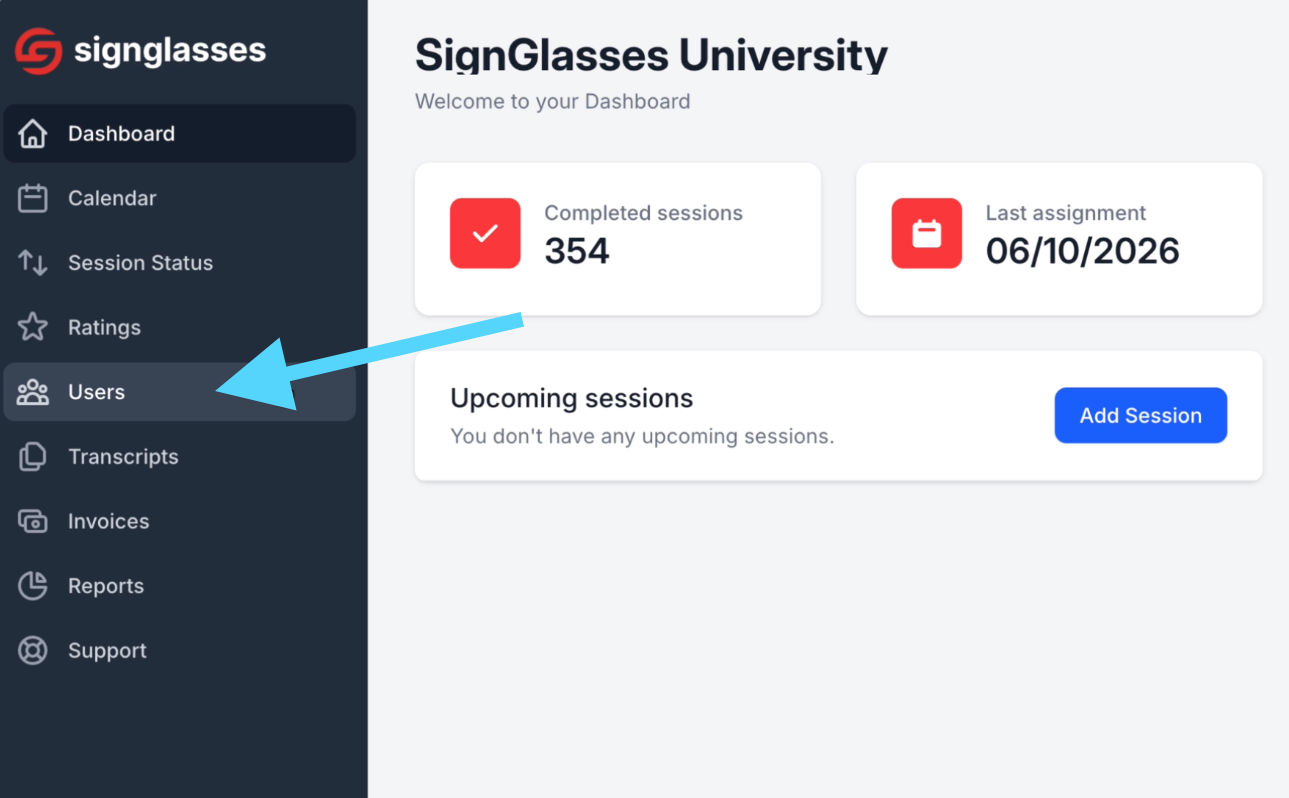
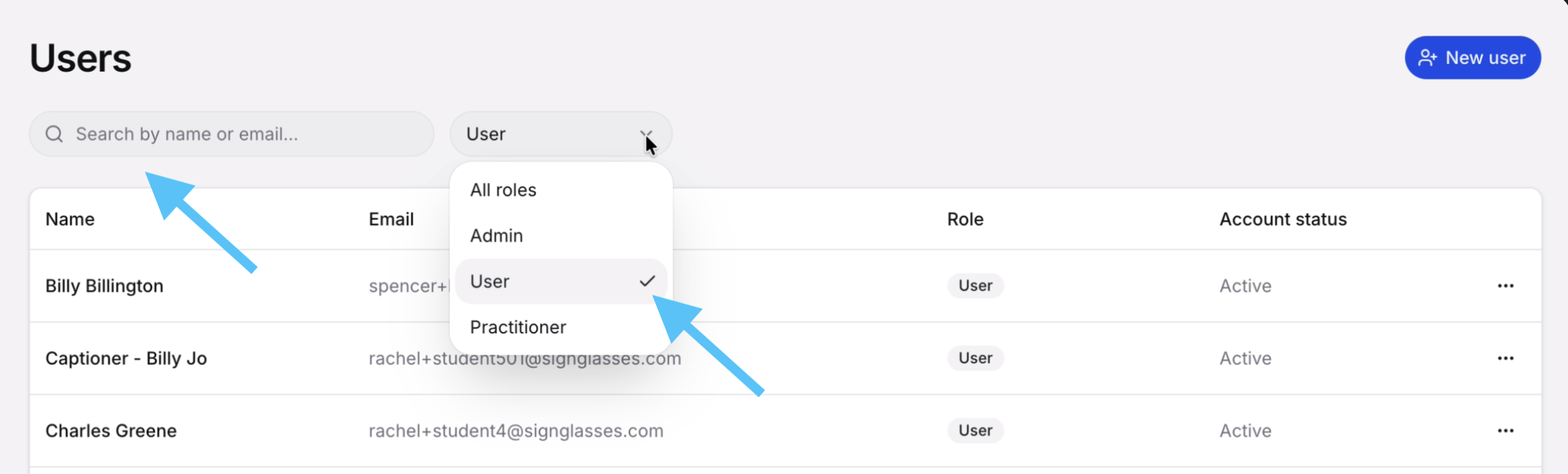
Locate the user. You can search by name/email or filter by User role
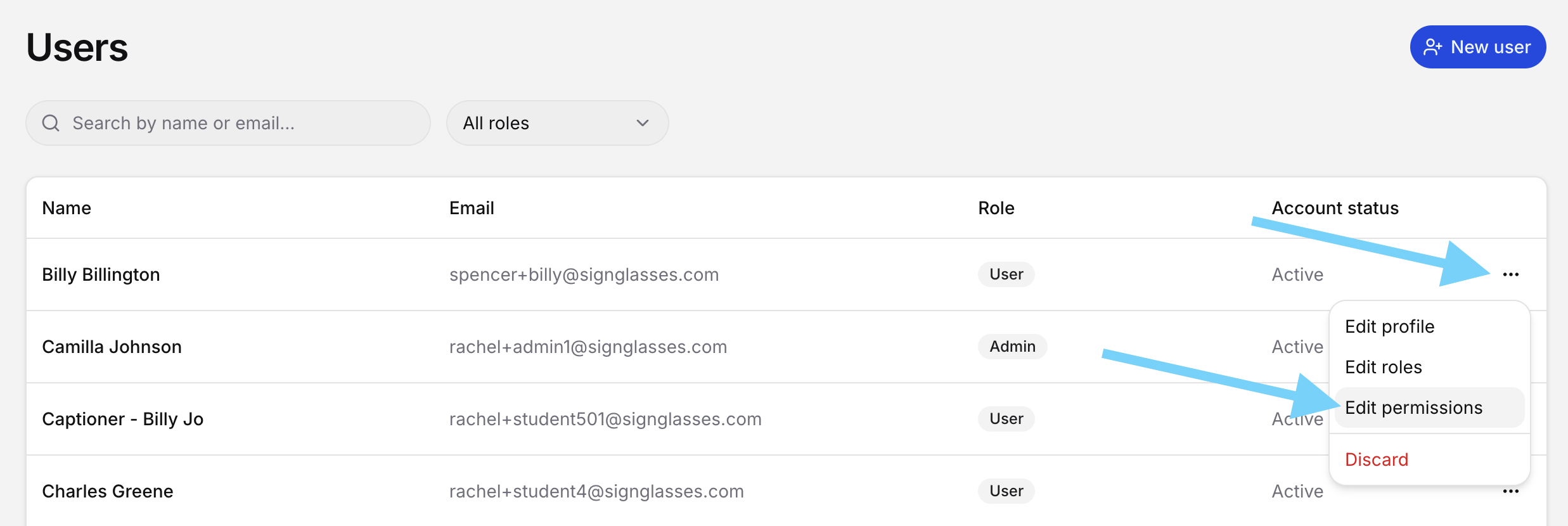
Click the 3 dots to the far right of their name and select Edit permissions
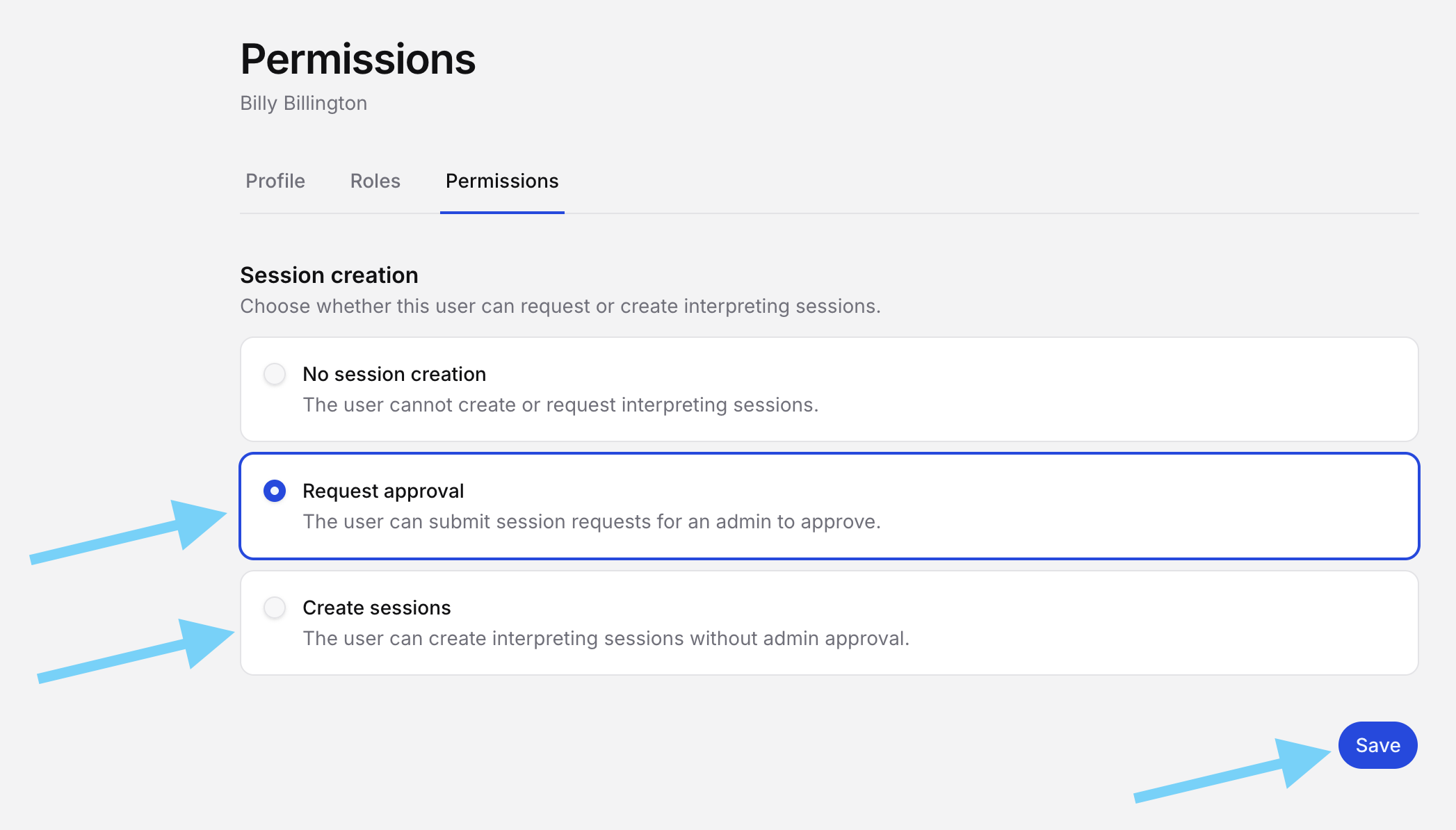
Select the permissions for the User
On this page, you have 3 options for the session creations permissions you would like the user to have.
No session creation
The user cannot create sessions or session requests in SignGlasses
Request approval
The user can submit session requests but an admin must approve the request before it is sent to SignGlasses.
Create Session
The user can create sessions without admin approval.
Select the option you would like and click [Save].
Review & Approve a Requested Session
If you selected Request Approval:
Open Event Requests on your Dashboard.
Click on the session to review the details
You will also automatically receive an email from SignGlasses when a session has been requested. You can click Review Request straight from the email.
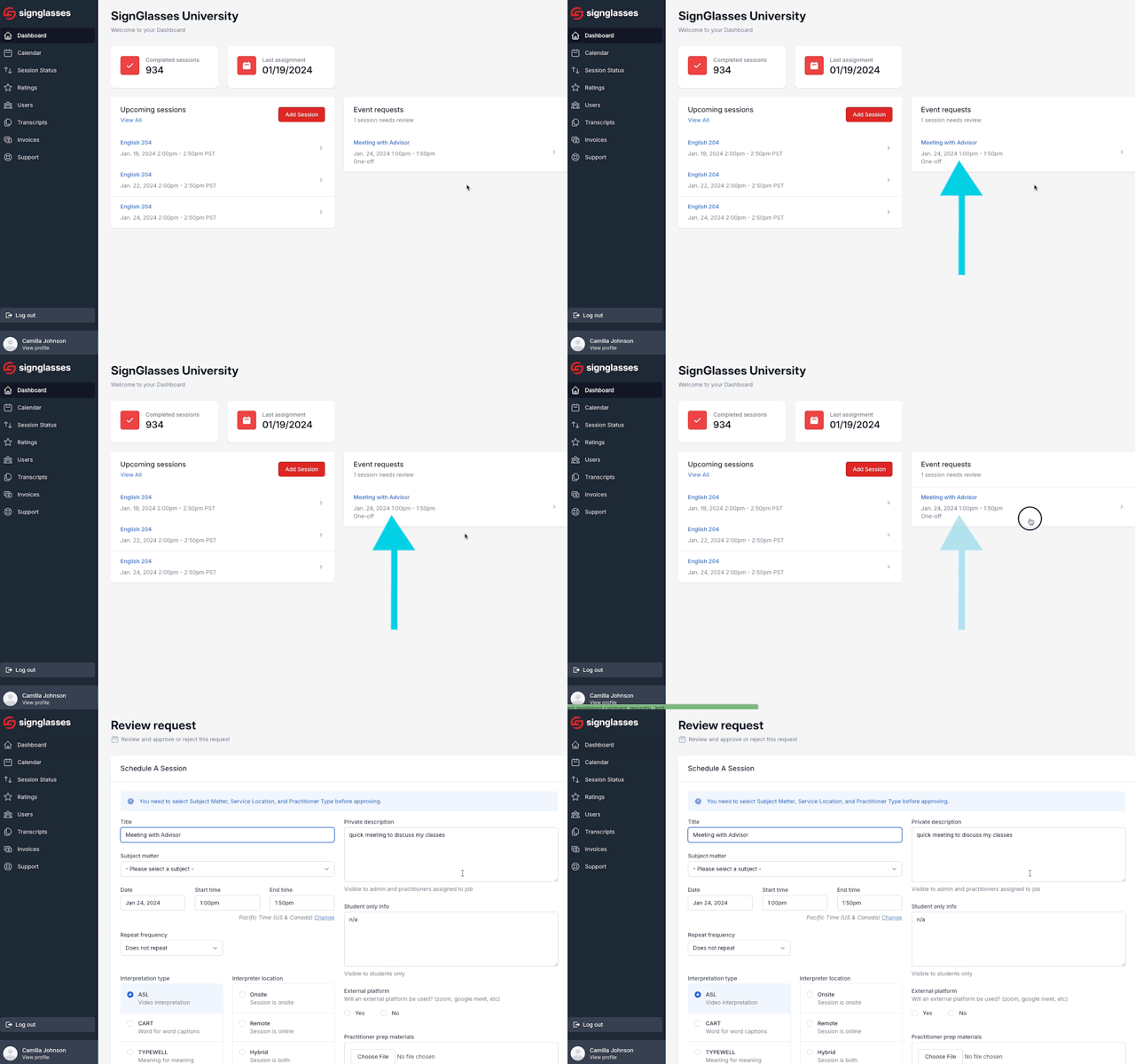
Add any extra details (like Zoom links, if needed)
Click [Approve] tosubmit it to SignGlasses
Click [Reject] to deny it
Once you click [Approve], the session will show up on your SignGlasses calendar and we will work on finding a practitioner if needed.

Please note that we will not attempt to find a practitioner for this until the [Approve] button is clicked.
Any questions? Reach out to us at ops@signglasses.com.