
Request a Session as a SignGlasses User
You can request your own SignGlasses sessions if your admin grants you the ability to do so.
If you have the ability to request your own sessions...
Log into your SignGlasses account
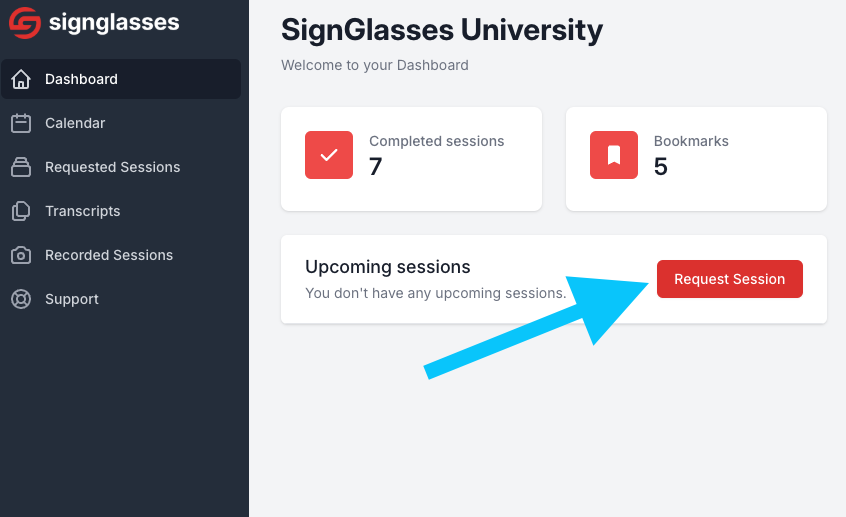
Select the red [Requested Session] at the center of your screen
If you see a blue [Add Session] button instead of the red one, you can create a session without admin approval. Refer our Create a Session guide for instructions.
Add the Session Details
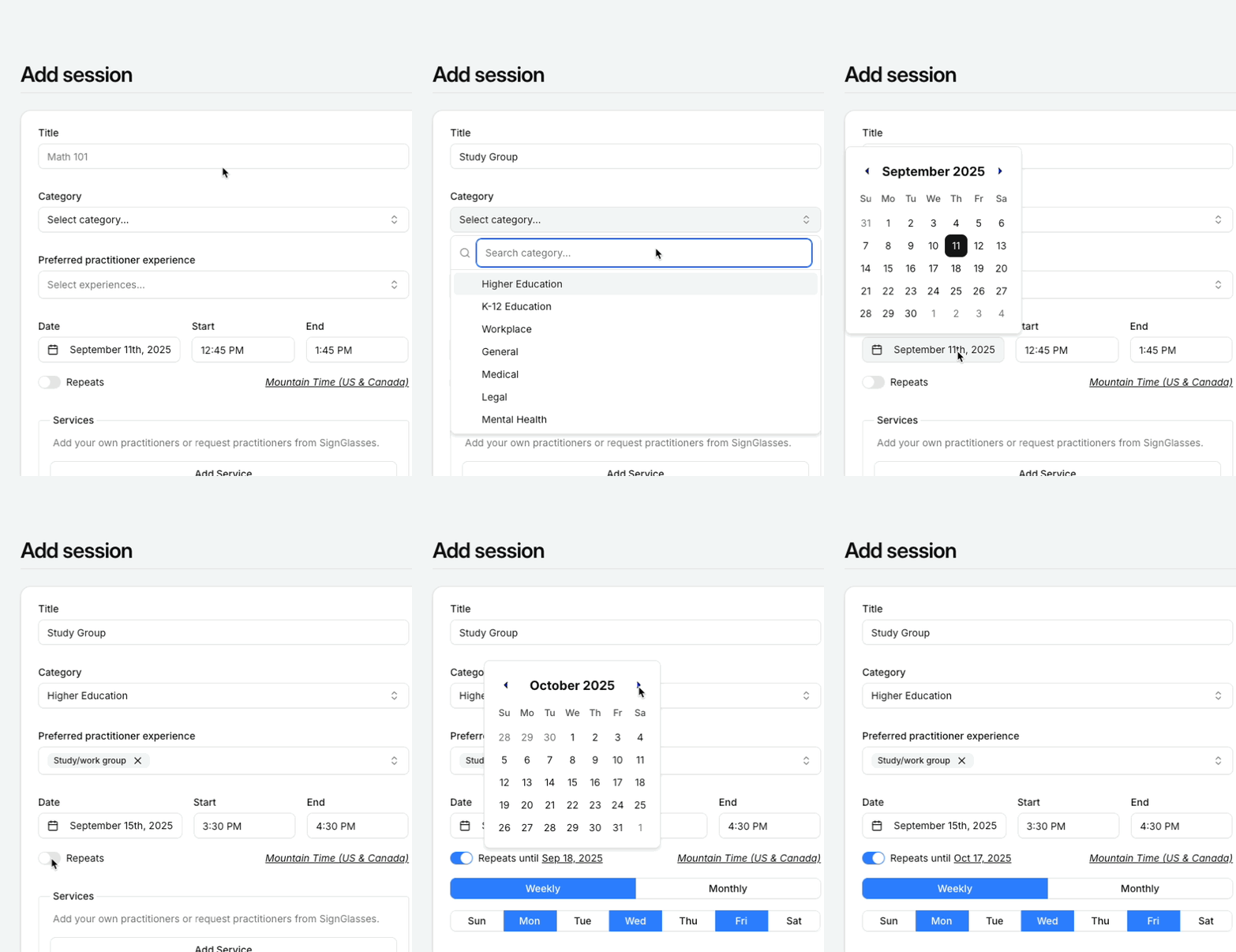
Add the Session Details
Add the Title
Select the Category
Select the Preferred practitioner experience
Enter in the Date and Time
If this is a repeating session,
Select Repeats
The days the session will occur
When the session will end
Select the Service Type & Request a Practitioner
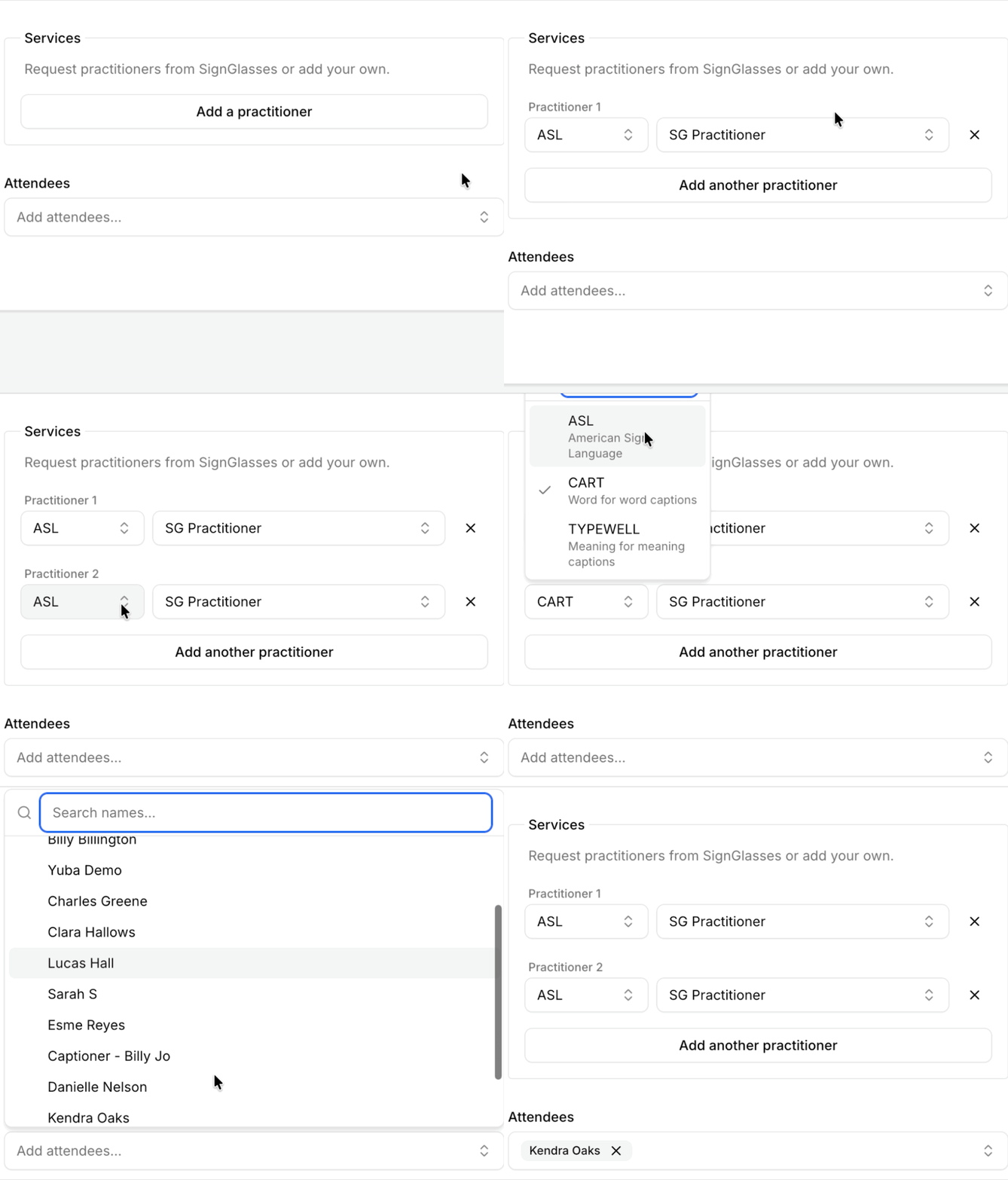
Click the [Add Practitioner] button
From the drop-down on the left, choose between ASL, CART, and TYPEWELL.
From the drop-down on the right, chose between a SignGlasses Practitioner or one of your internal ones.
Click [Add another practitioner] and repeat this process if you want more than one practitioner
Under Attendees select your name and the name(s) of anyone else who needs to log in to SignGlasses for the session.
Select the platform you will be using
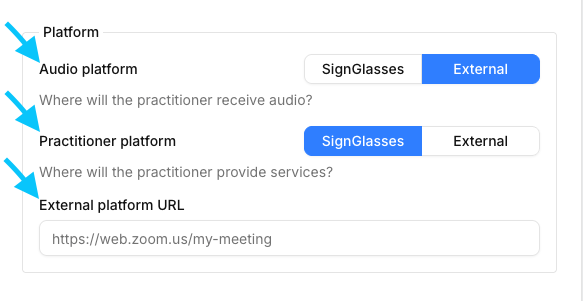
Under Platform, select whether the SignGlasses platform or an external platform (ie: Zoom, Google Meets, Microsoft Teams, etc.) will be used in this session.
Under Audio platform, select where the practitioner will receive audio
Under Practitioner platform, select where the services will be provided
Add the link to the external platform, if there is one
If you are using SignGlasses for both audio and video, select SignGlasses for both of these
If you are using an external link and do not have the link yet, leave the URL section blank.
Add Prep Materials
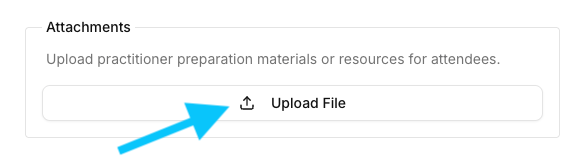
Under Attachments, add any additional class resources that may be useful for the practitioners by clicking [Upload File] and selecting the files.
Examples of helpful materials include:
Lecture or Presentation Slides
Discussion Documents
Meeting Agendas
Share Additional Information
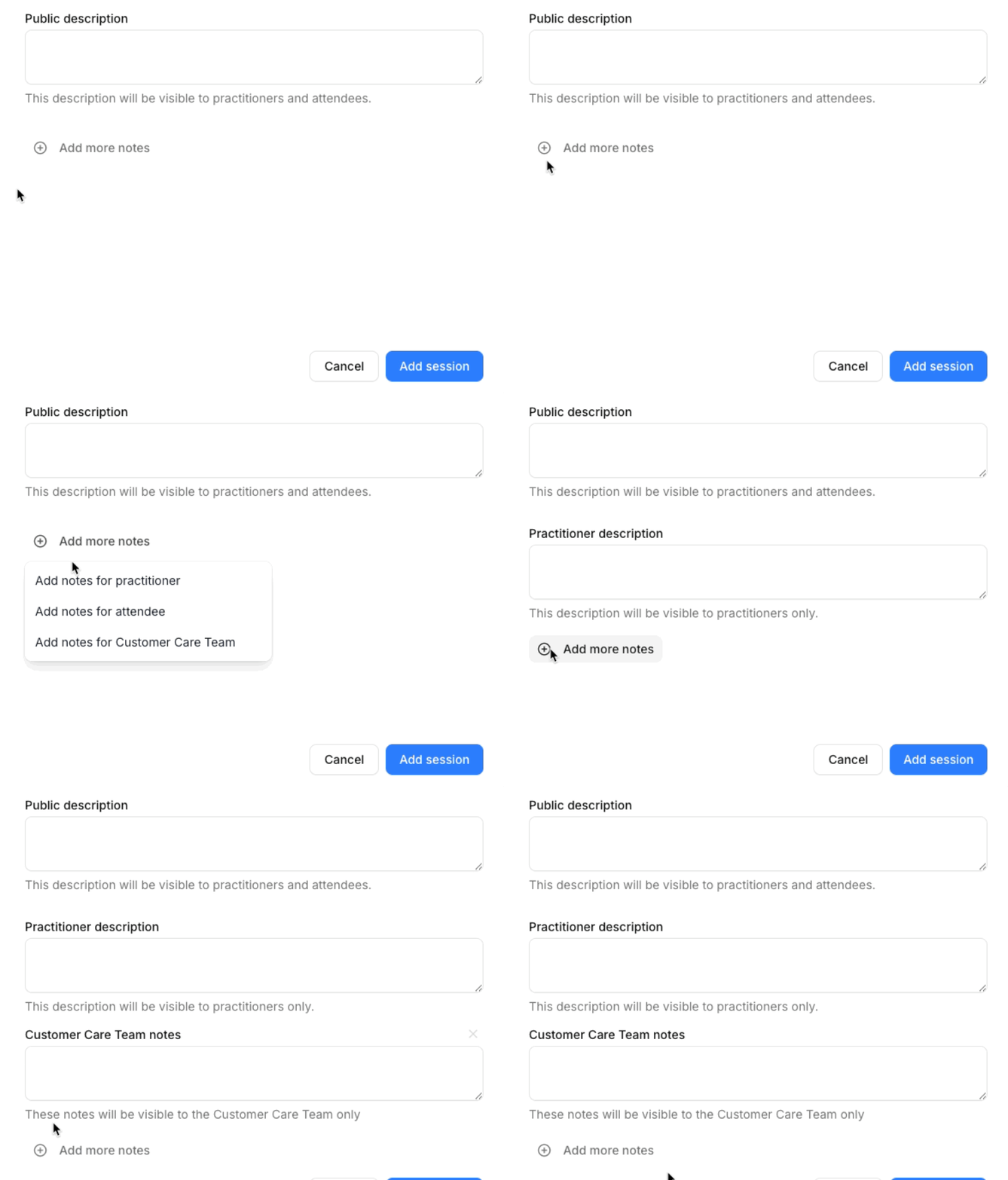
There are optional text boxes that you can add information to.
Public Description: This is typically for general information. This can include the course description, what the meeting is about, etc. Everyone in the session can read this.
For other notes options, click + Add more notes and select from the options below:
Add notes for attendee : Information here is for you - the attendee/user - only. (The practitioners in this session will not see this.)
Add notes for practitioner: Information here is for the practitioner only.
Add notes for Customer Care Team: This is good place to share preferred practitioners, contact info, or anything SignGlasses may need to know. Information here is only seen by the SignGlasses Customer Care Team.
Click "Request Session"
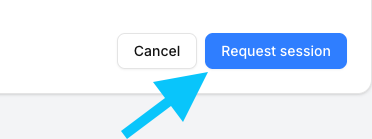
Once you have filled in all the necessary information, click the blue [Request Session] button. Then you'll be all set!
Review the Request
You can now see the pending request under the Requested Sessions page.
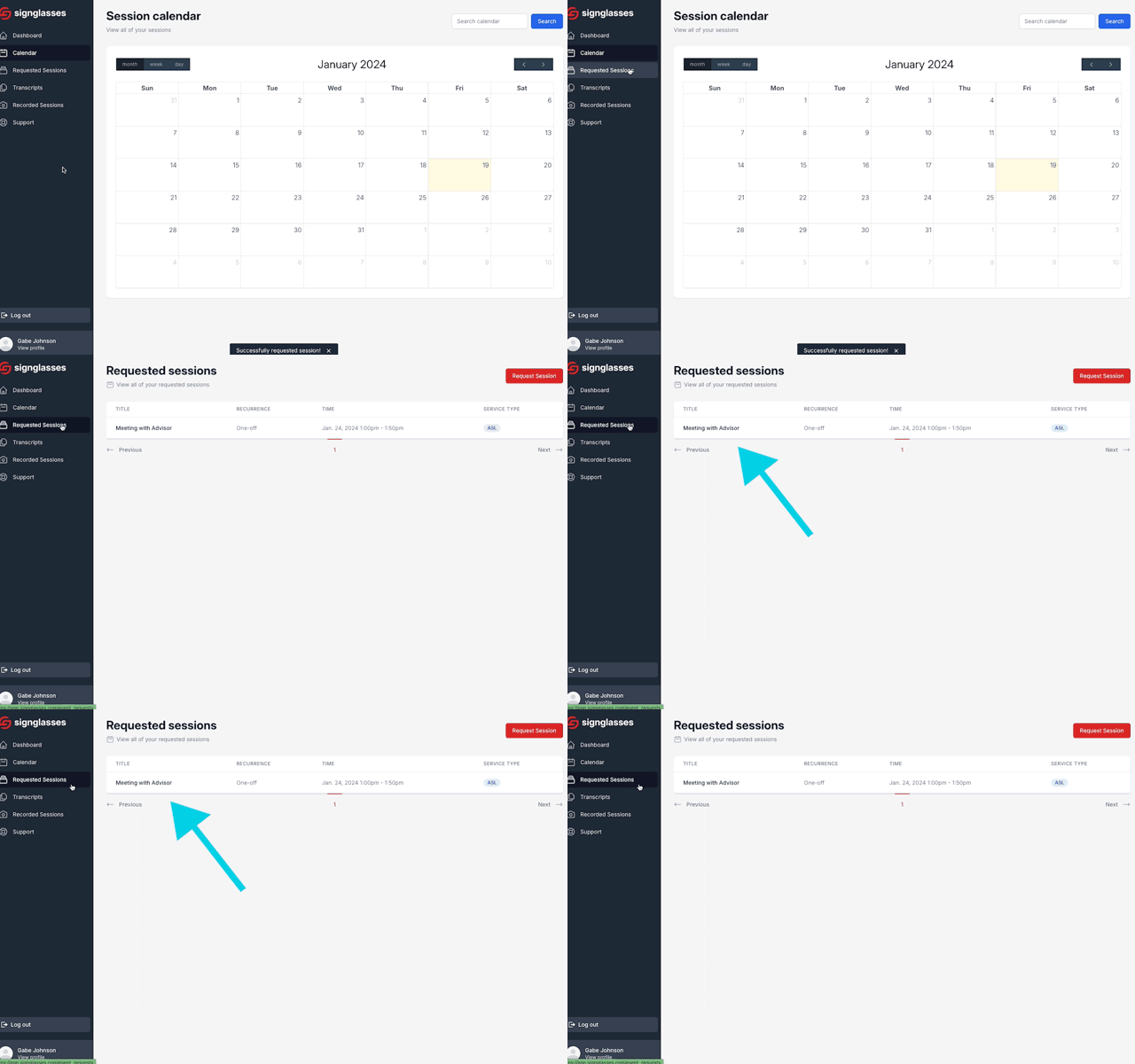
Once it has been approved by your administrator, you will see it in your Dashboard and Calendar. You will also receive an email confirmation.