
Review your Recorded Videos & Notes
If your organization has this feature enabled, you can review recordings and notes from your SignGlasses sessions. Session recaps are available shortly after a session ends.
You can access them from either a web browser or the mobile app.
If you're using a browser window...
Open the Session Recaps page
Log into your SignGlasses account
Select Session Recaps from the menu on the left side of the screen
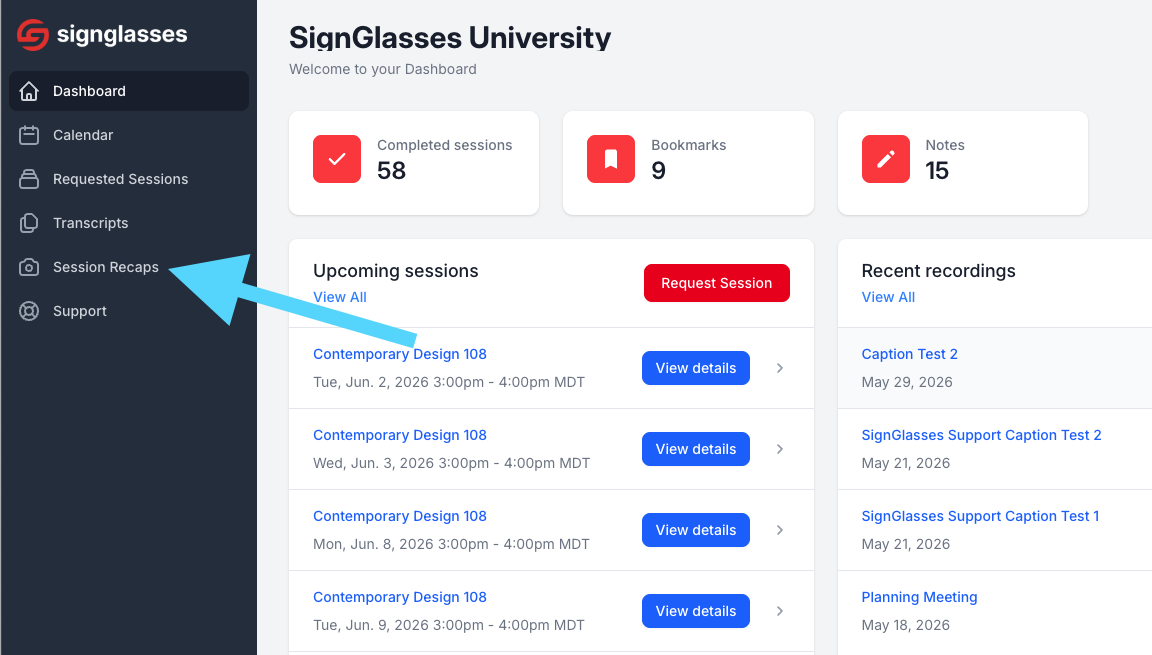
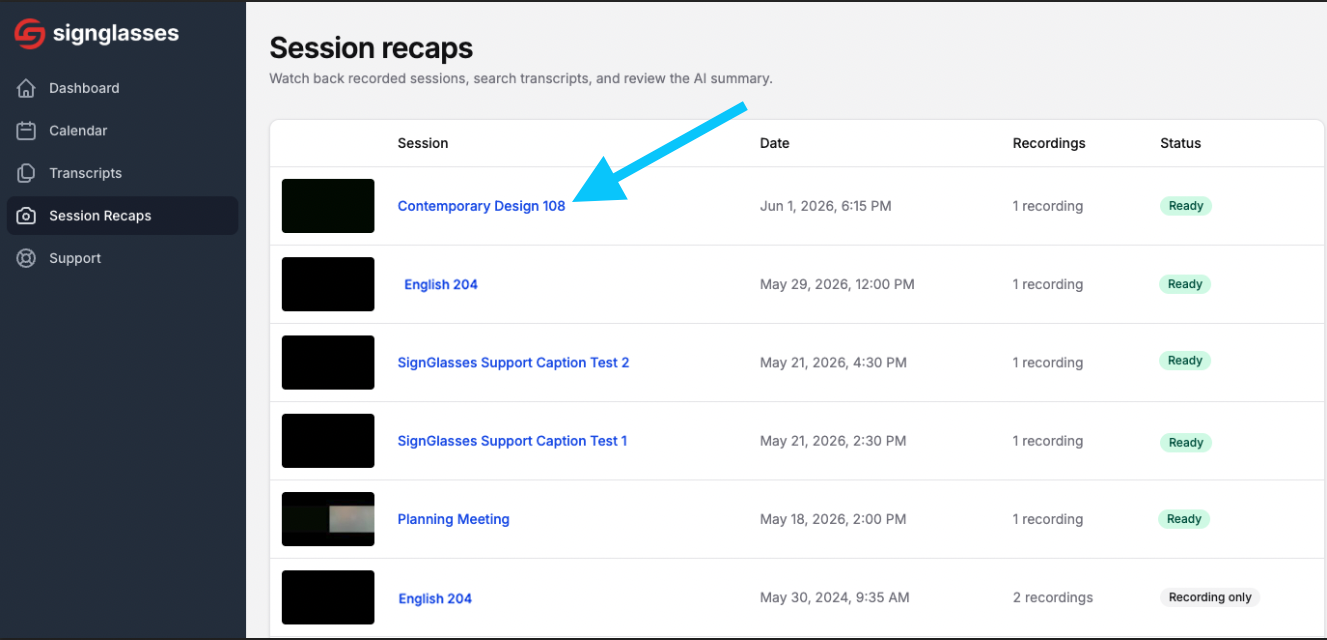
Browse the list and click the session you'd like to view.
Recordings are listed by title, with the most recent sessions at the top
What You'll See
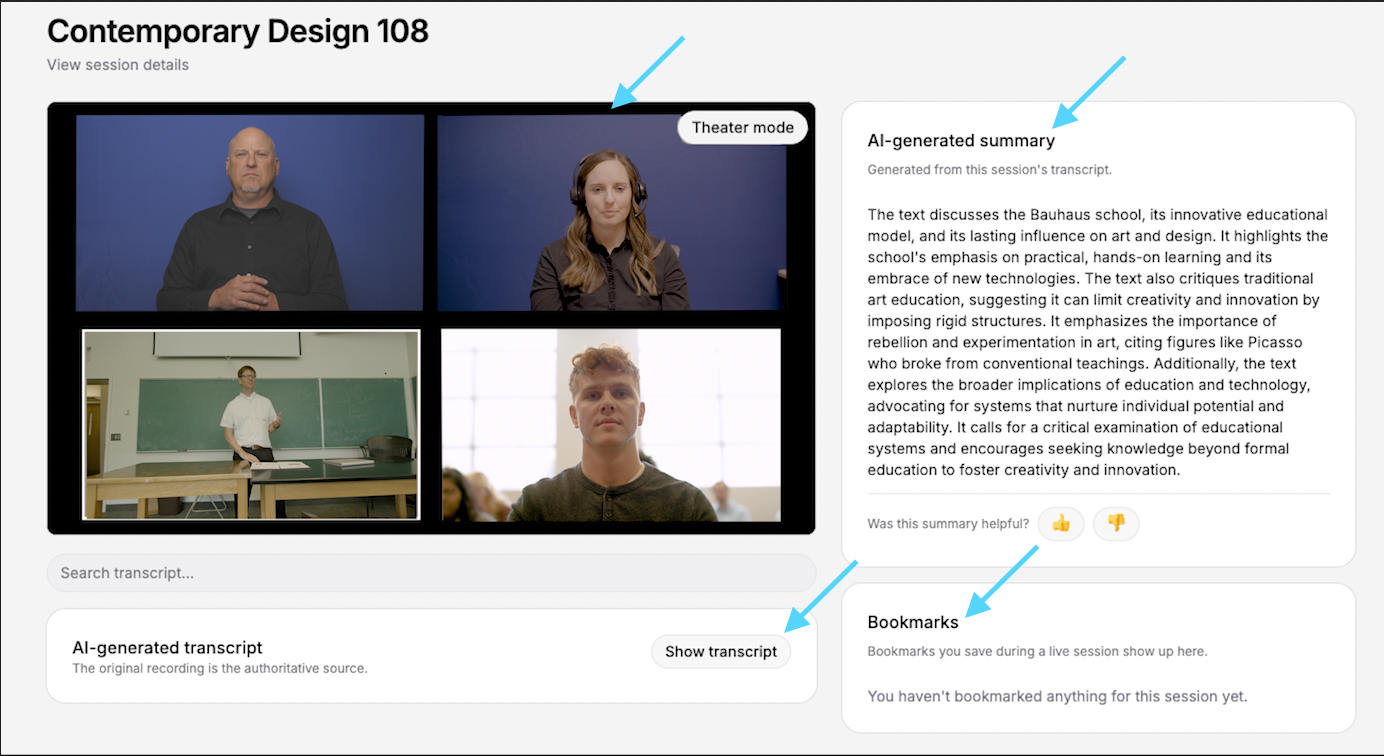
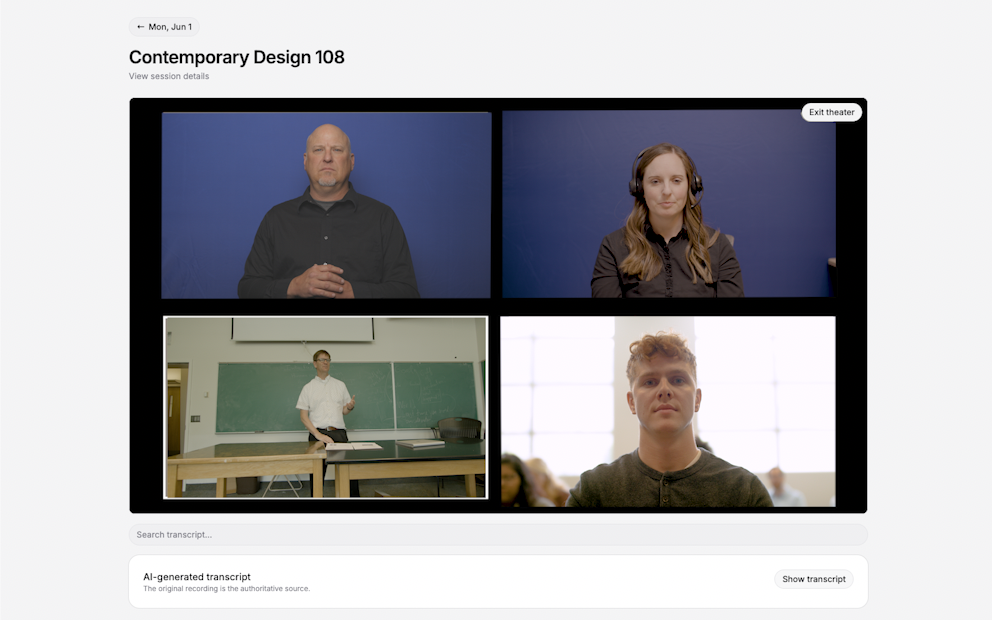
The recorded video
An AI-generated summary of the recording (if enabled by your institution)
Any time-stamped notes or bookmarks you created during the session
The session transcript
Captioned sessions include the transcript provided by your captioner
Interpreted sessions may include an AI-generated transcript, if enabled by your institution.
To view the full transcript, click Show Transcript to the right of this section
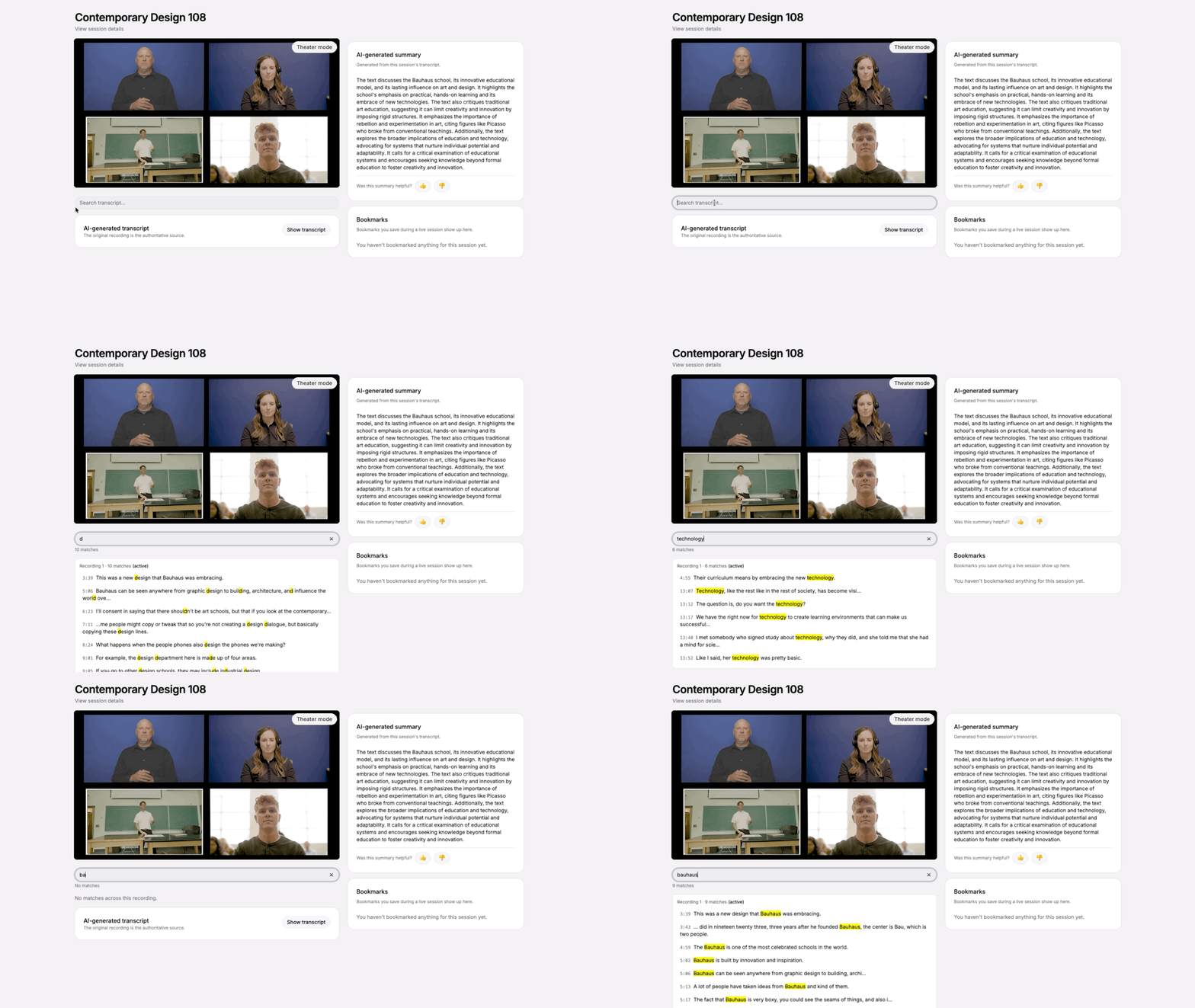
Tip: Search the transcript using keywords to quickly find specific topics or moments from the conversation.
Want a larger video view?
Click Theater Mode in the top-right corner of the video player to enlarge the video. Scroll down to see the recap details below
Or click the Full Screen icon in the video controls to view only the video across your entire screen
If you're using the mobile app...
The Session History Page
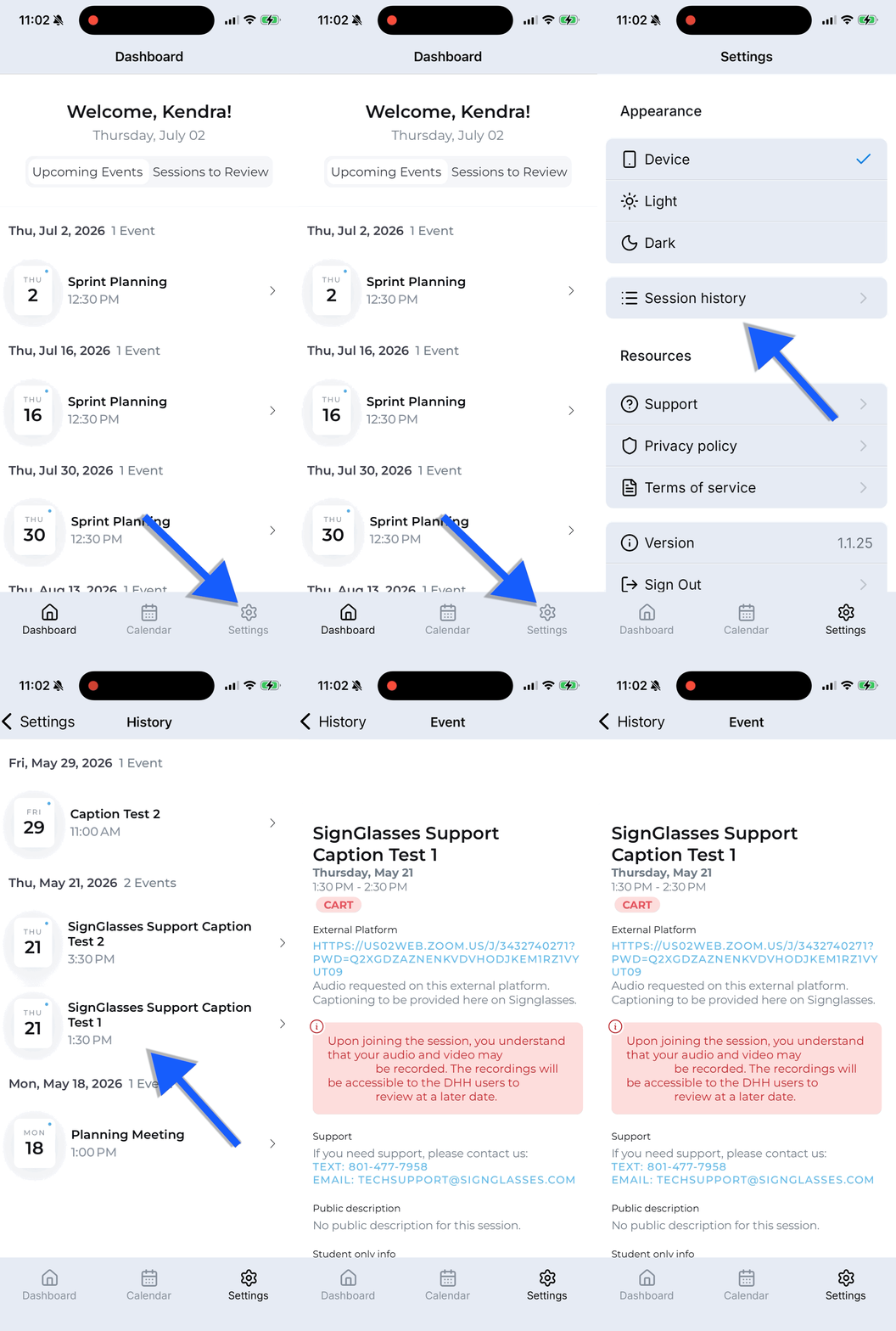
Login to SignGlasses in the mobile app
Select Settings from the menu at the bottom-right of your screen
Select Session History
Scroll through the list to find the session you are looking for
Review the video
Select the session and scroll down the page to view the video & transcript
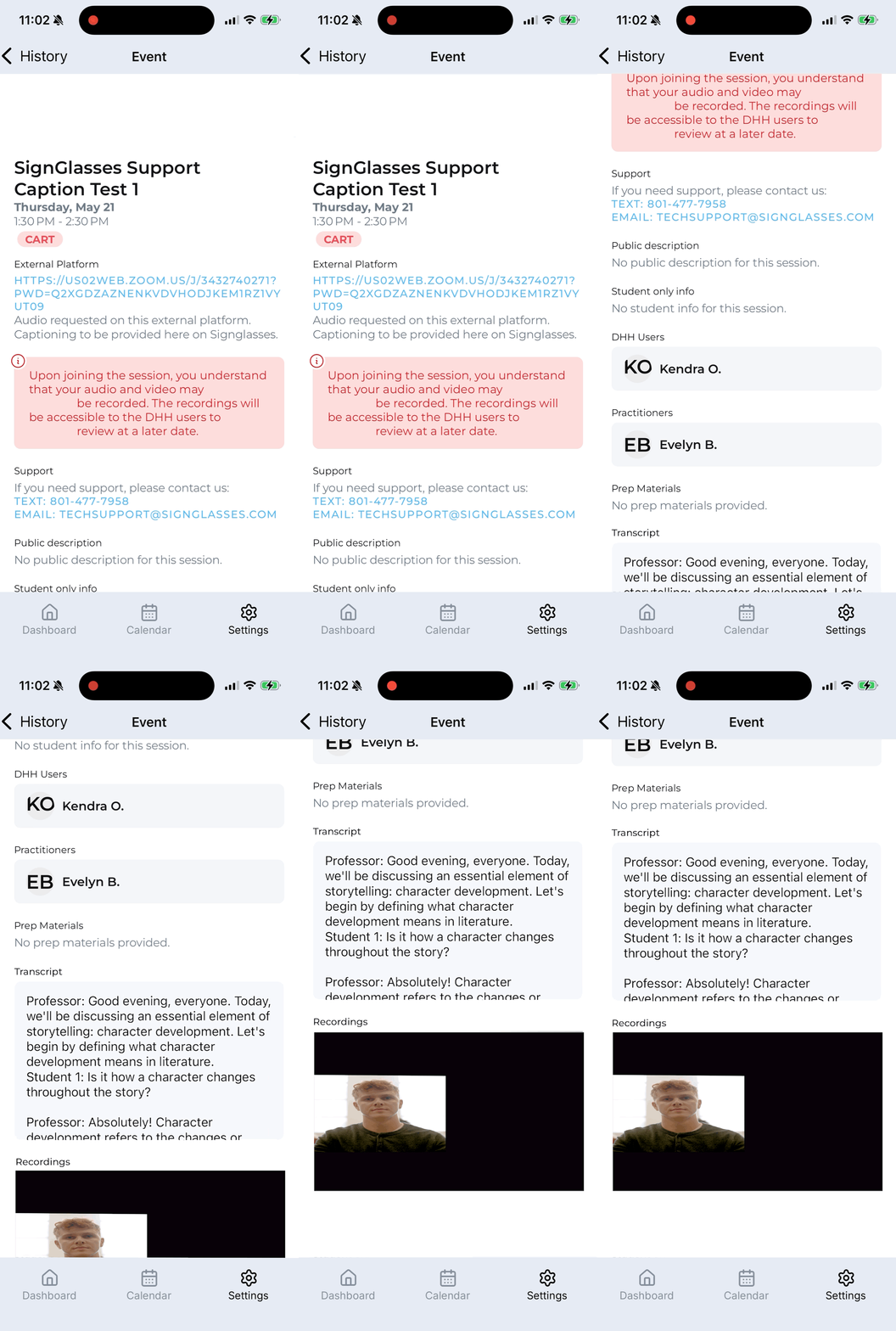
In the mobile app, you cannot review your notes and bookmarks. If you took notes in SignGlasses, please log in via a browser window on your computer or tablet.
If you believe you should have these recordings available but don't see them when following these steps, please reach out to your administrator.