
Using the Ray Neo Smart Glasses in SignGlasses
When using the SignGlasses platform, you can see your interpreter or captions on your screen and on the smart glasses.
First: Turn on the glasses
Locate the power button on the bottom right of the glasses
Press and hold this button for 4 seconds
You should see the glasses boot up shortly! If you don't see this, plug the glasses in to charge. Then wait a few moments and try again.
If you hold the power button down for 12 seconds, that will fully turn off the glasses.
Make sure the glasses are connected to Wi-Fi
When your glasses boot up, you will see a screen that says "Scan a QR Code". At the bottom of the screen, it may also say "Connecting to Wi-Fi..."
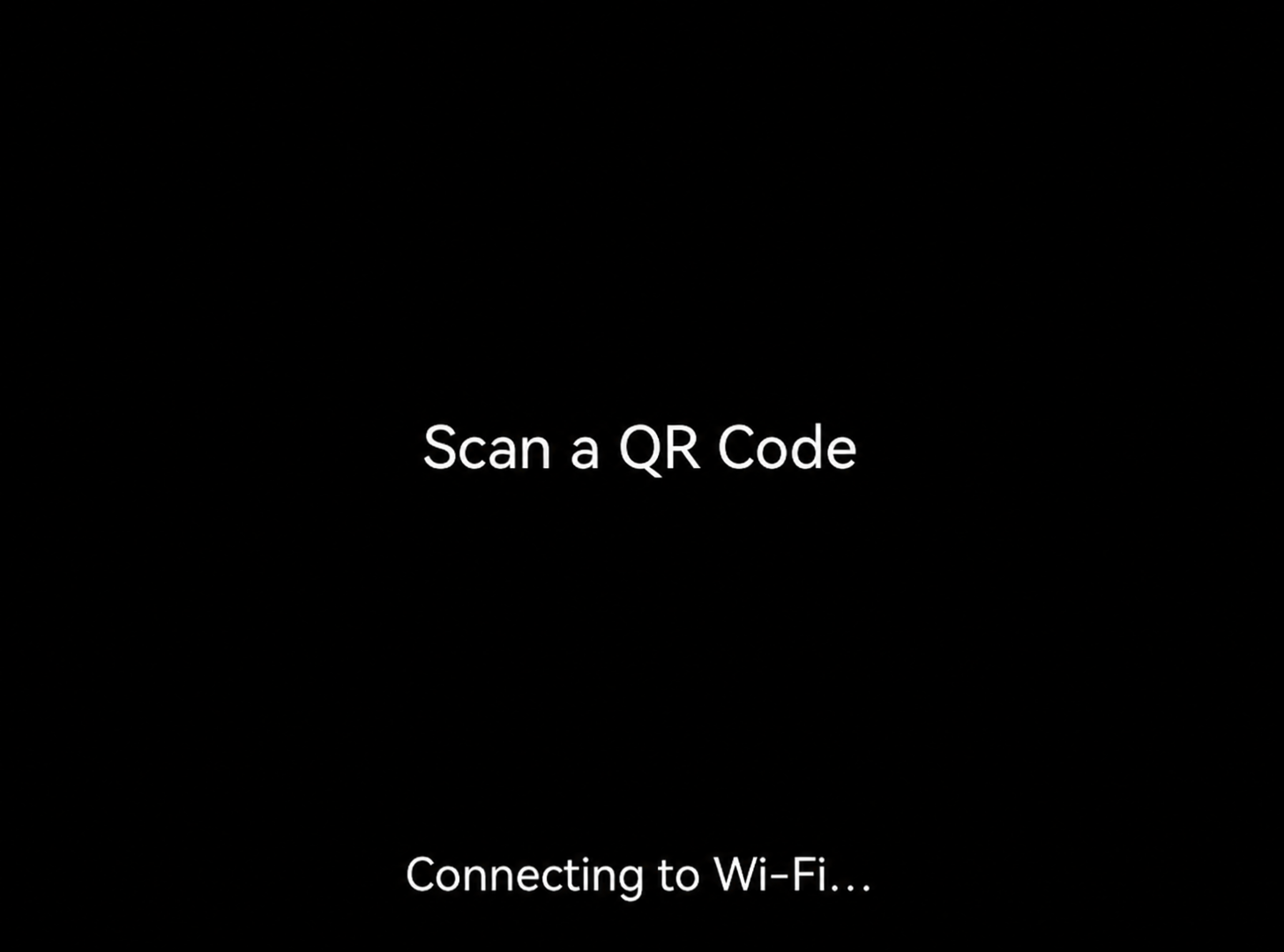
When the glasses connect, "Connecting to Wi-Fi..." at the bottom of the screen will disappear. If this message does not disappear, connect the glasses to Wi-Fi from your SignGlasses session before continuing.
To connect to Wi-FI:
Log in to SignGlasses
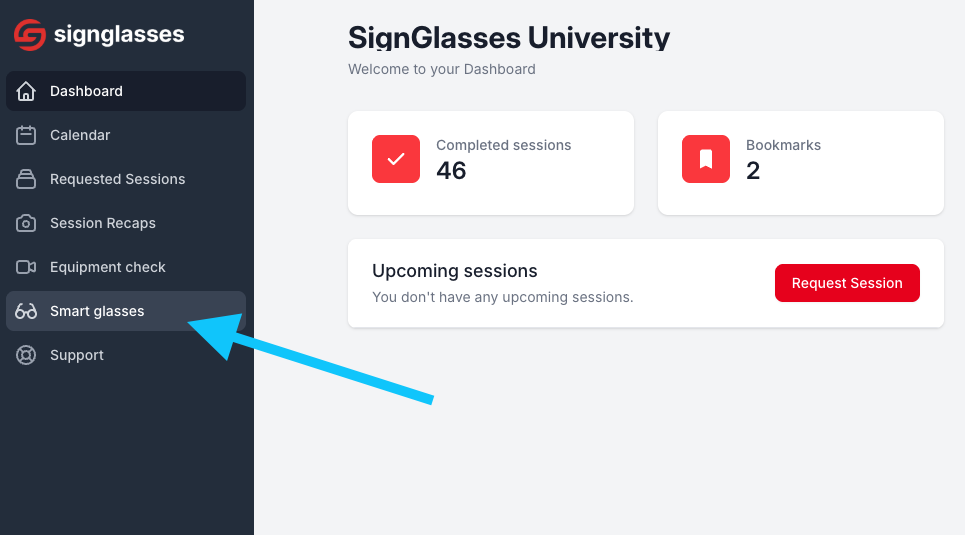
Select the Smart glasses page on the left hand side
Scroll down to the Wi-Fi QR code generator and enter in your network name and password
Click [Generate QR code] and scan this code through the glasses by pointing the glasses in that direction while wearing them
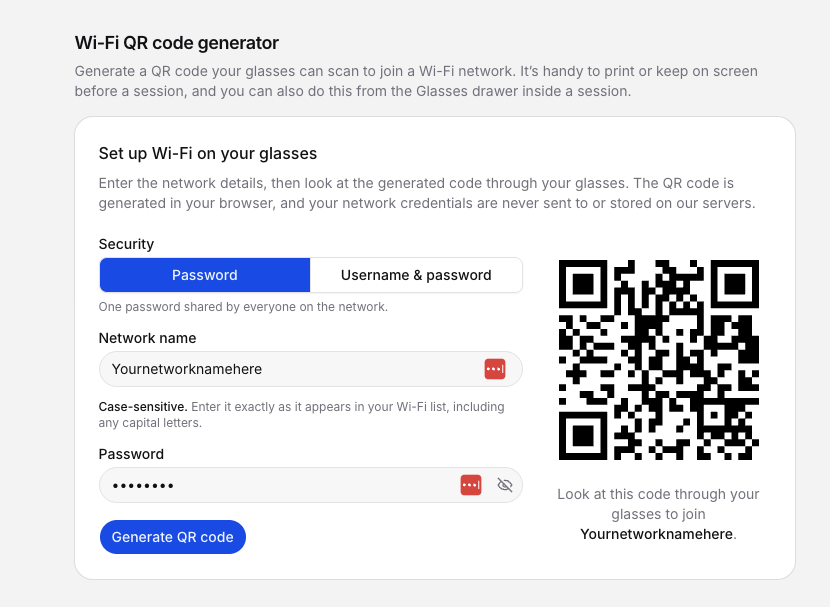
You'll know they are connected because there will be a message letting you know it connected and the "Connecting to Wi-Fi..." message will go away.
You can also connect these to Wi-FI from within the session, if you would prefer! To do this:
Join your SignGlasses Session
Click the [Settings] button at the bottom right of your screen
Select Glasses
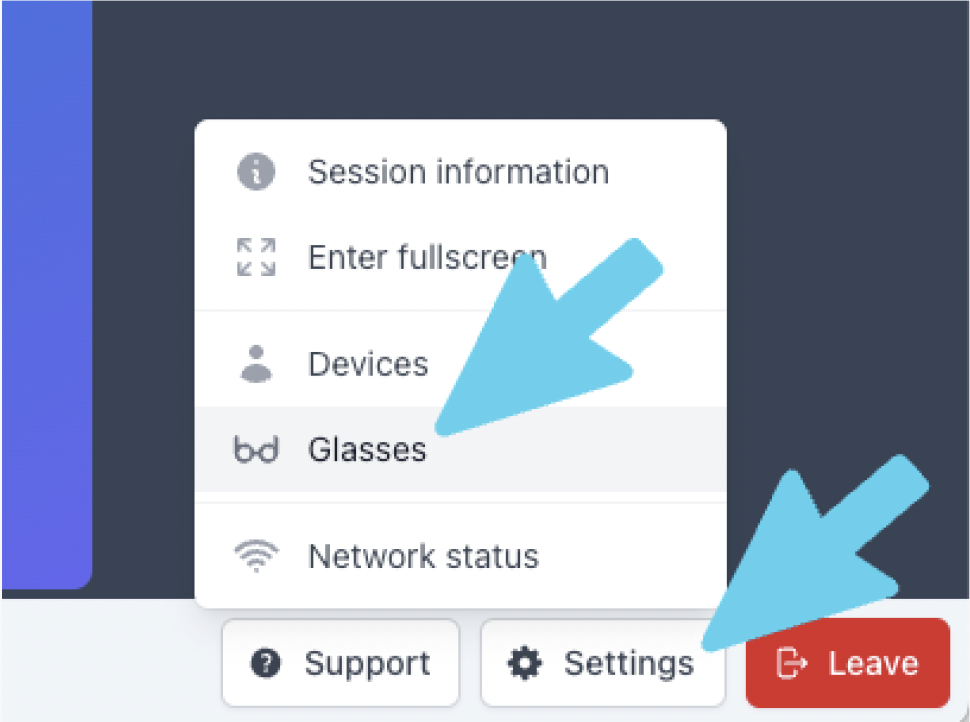
Select the box that says [Set up Wi-Fi]
Enter in your network name and password and click blue [Generate QR code] button
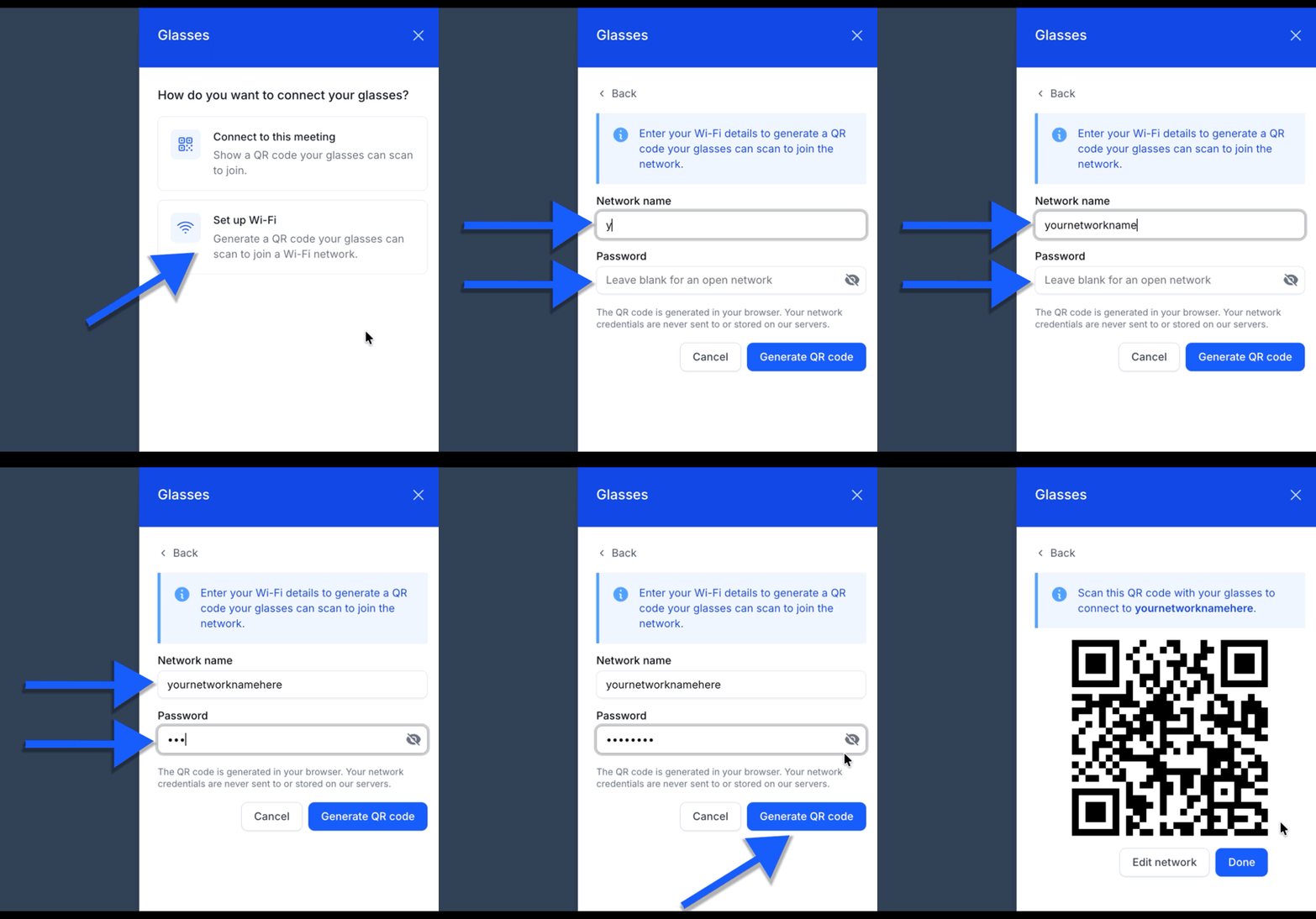
Scan this code through the glasses by pointing the glasses in that direction while wearing them
Connect the glasses to the SignGlasses session
Select [Connect to this meeting] at the top-right of the screen
Scan this QR code through the glasses
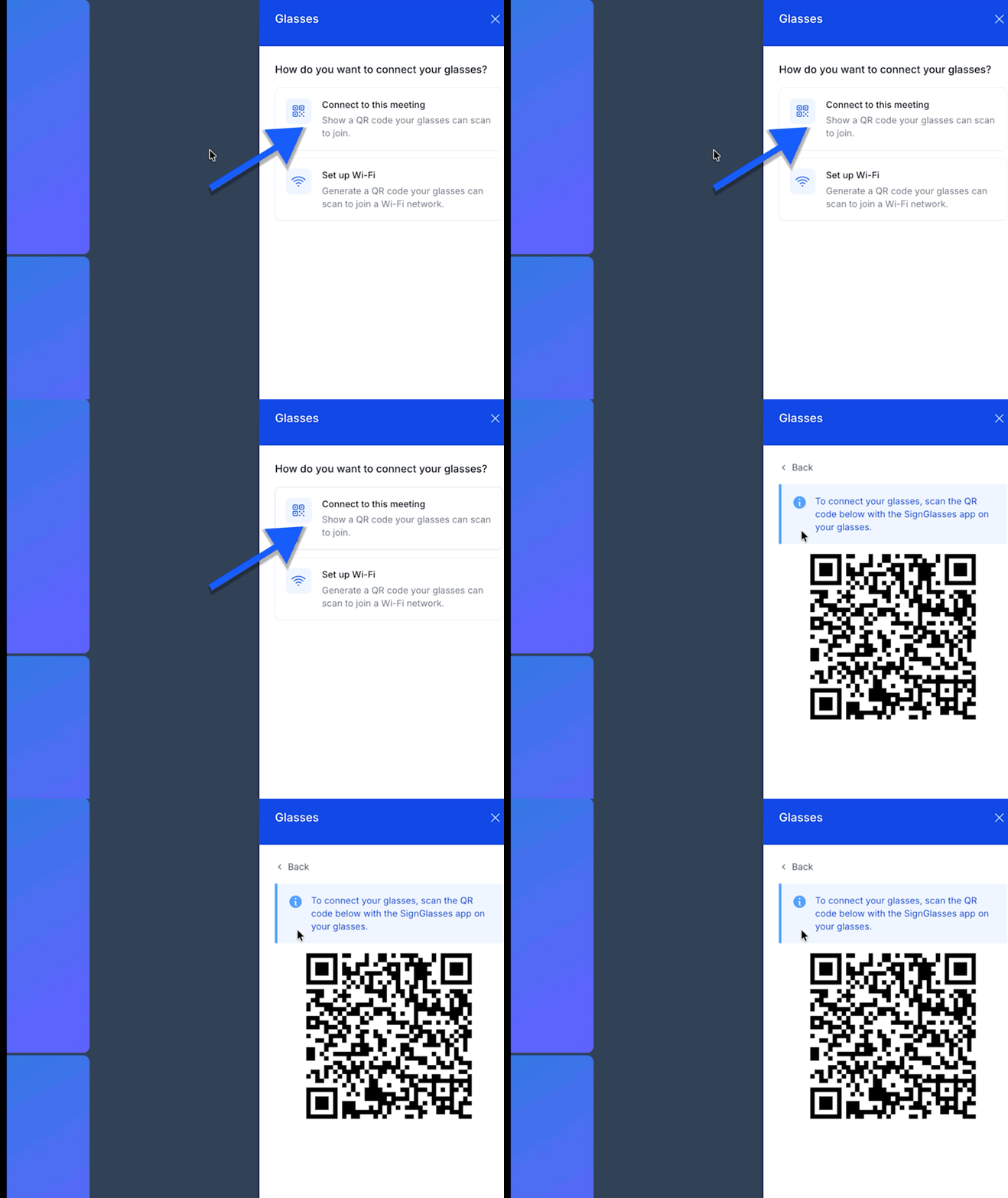
You will now see your interpreter or captions through the glasses!
Adjust your settings as needed
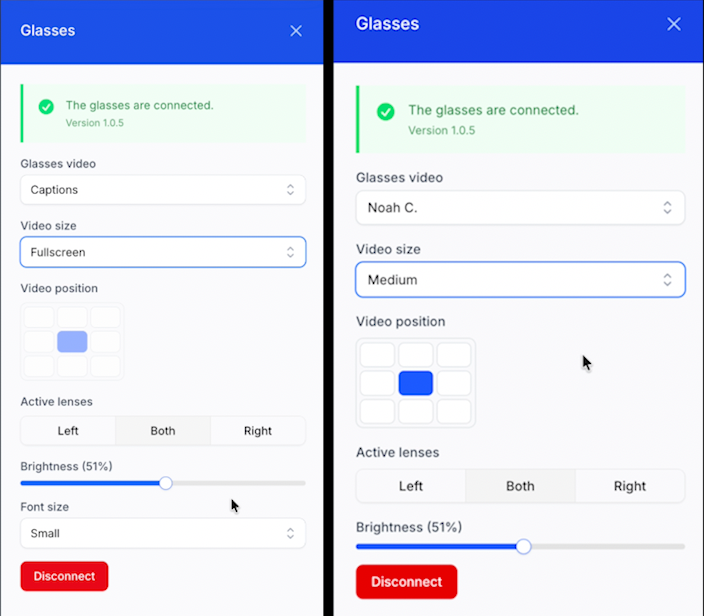
On this page, you can change
Which interpreter is featured in the glasses
The size of the interpreter's videos/size of your captions
The position of these in the glasses
Which lenses you see them through
The brightness of these in the glasses
Having trouble connecting? Reach out to us at techsupport@signglasses.com